WebRTC Live Screen Sharing for Remote Support
Share your entire screen, a single window, or just a browser tab with a single click during a call. Customers don't need to download or install anything.

Every minute you spend on the phone trying to explain to a customer, "Click this button, a menu will open in the top right," drains both your and the customer's patience. Live screen sharing ends this conversation with a single action: your customer clicks a button on your site, chooses to share, and transmits their screen to you. Bitenta's screen sharing uses the WebRTC standard's getDisplayMedia API, works natively in the browser, and doesn't require customers to download any applications. The video stream is established directly (P2P) between the representative and the customer and is end-to-end encrypted with DTLS/SRTP; not even our servers can see the content.
Schritt für Schritt
Start the Call
First, start the video call from the Bitenta button on your site.
Share Screen
Click the share button; select the entire screen, window, or tab.
Let the Other Party See
The screen stream is transmitted via P2P; latency is usually below 200 ms.
What is browser-based screen sharing and how does it work?
Modern browsers provide an API called getDisplayMedia under the WebRTC umbrella; this API captures the screen, an open window, or a browser tab in real-time video stream with user permission. When your customer clicks the "Share Screen" button in the Bitenta window, the browser displays a standard dialog for selecting the sharing source: entire screen, a specific application window, or just a tab. Once the selection is made, the video stream is transmitted to the representative as an additional media channel in the existing video call. It works on the latest versions of Chrome, Edge, Firefox, and Safari; no plugins, extensions, or desktop applications are required.
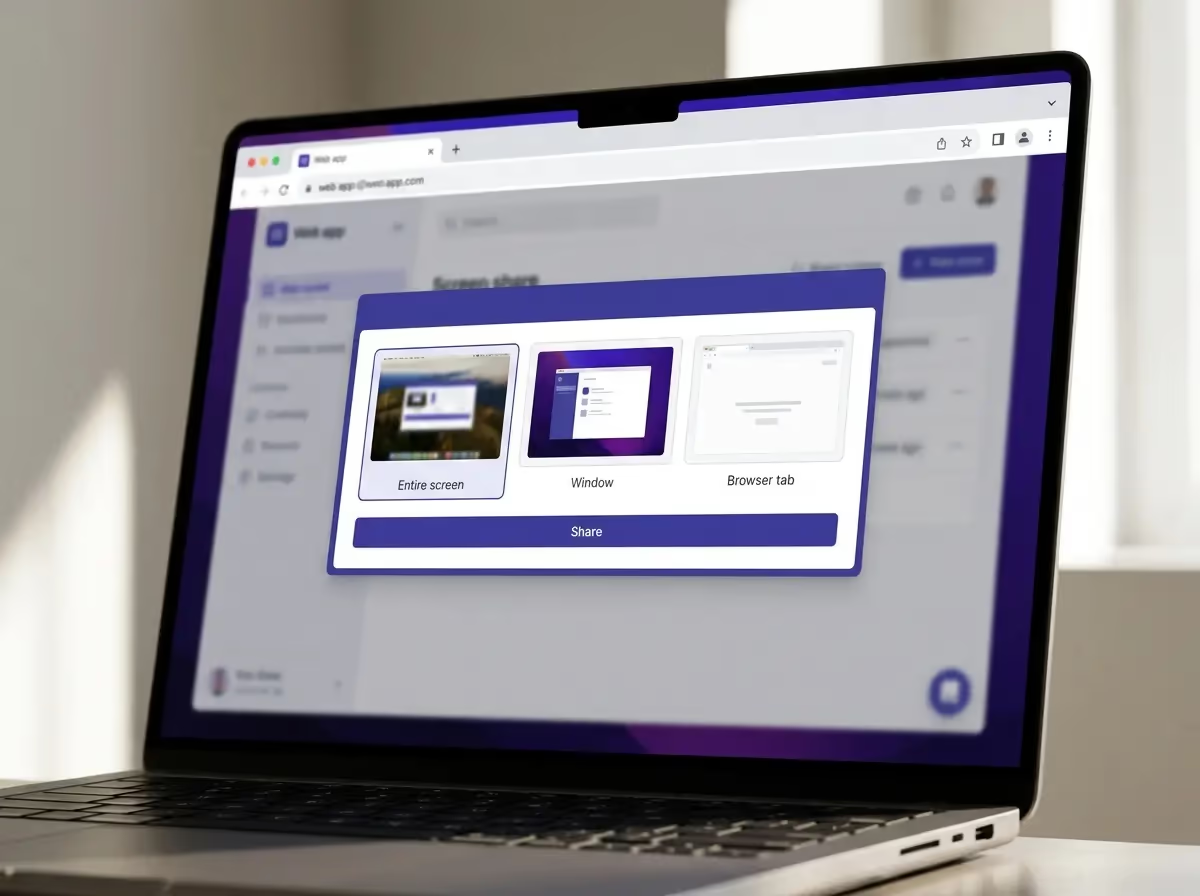
Ideal for remote technical support, onboarding, and product demos
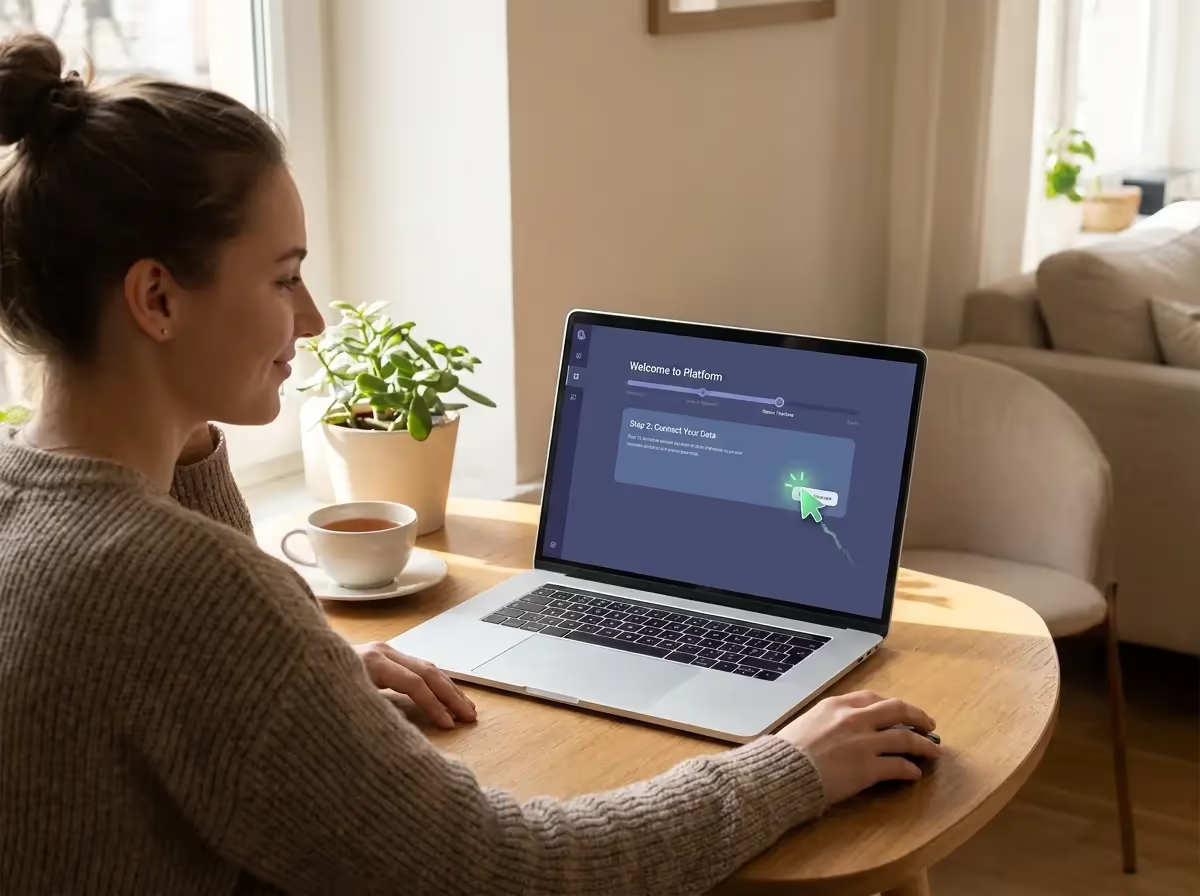
Did your customer get lost in a SaaS panel? Are they stuck on a payment step? Do they want to learn how to set up a new feature? Screen sharing squeezes all these scenarios into a single call: your customer shares their screen, you guide them visually; you can get the customer who clicked the wrong place back on track in seconds without the need for email exchanges. Since both the representative and the customer can share their screens, it's not just one-way support, but also a two-way demo — you don't need to set up a separate Zoom to demonstrate your product live.
P2P encrypted transmission, KVKK compliance, and low latency
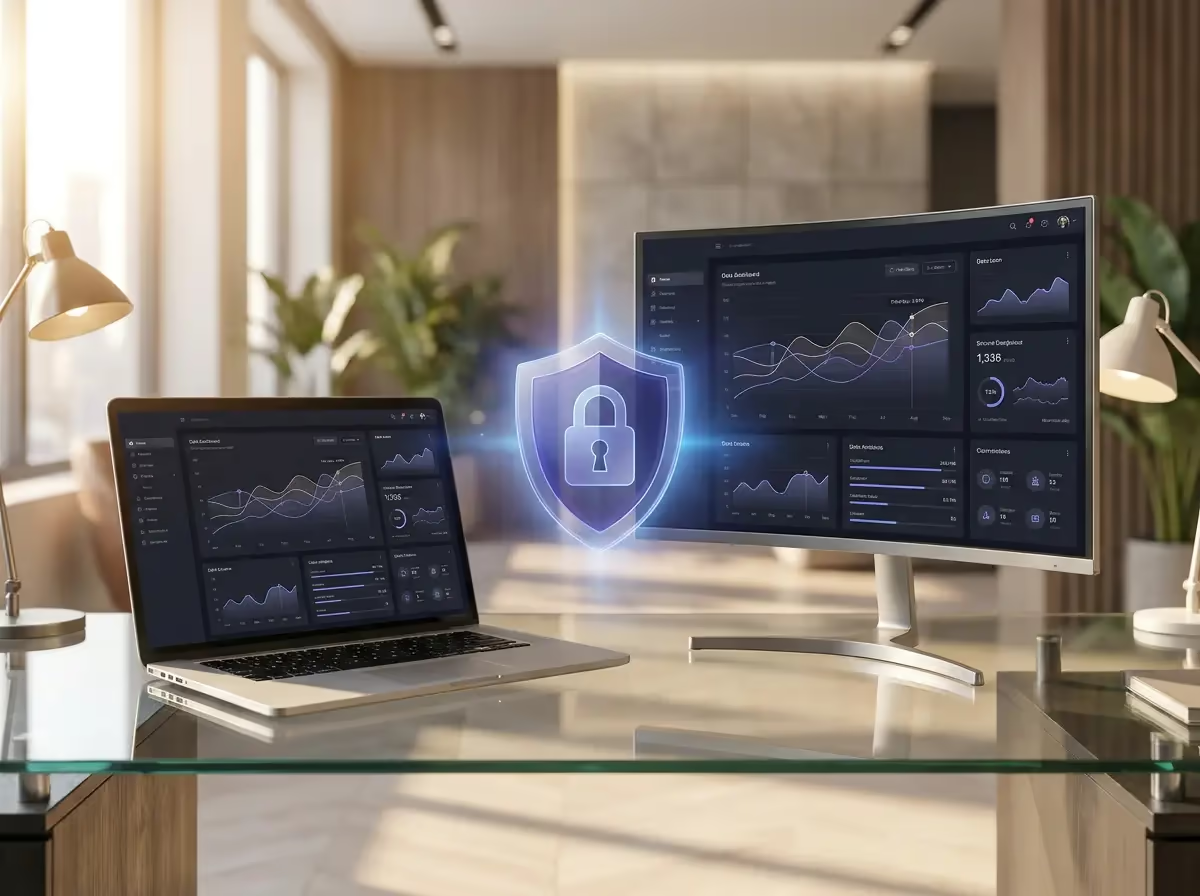
In Bitenta, the screen stream goes through the same security chain as video and audio: a direct WebRTC connection is established between the representative and the customer, and the stream is end-to-end encrypted with DTLS/SRTP. No recordings are kept; content is not stored on any servers. Connection setup uses STUN/TURN servers in Turkey, ensuring that latency in most shares stays below 200 ms. When connection quality drops, Bitenta automatically adjusts resolution and bitrate, ensuring that text on the screen remains readable. All metadata is processed in Turkey; data processing agreements are signed with corporate customers under KVKK.
Was Sie mit dieser Funktion tun können
Full Screen, Window, or Tab
You can share the entire screen, a single application window, or just a browser tab.
Bidirectional Sharing
Both the representative and the customer can share their screens; demo and remote support in a single call.
Simultaneous with Video
Screen sharing is added as an additional channel to the existing video call; face and screen at the same time.
P2P End-to-End Encrypted
The screen stream is encrypted with DTLS/SRTP; it does not pass through our servers, is not recorded.
<200 ms Latency
Thanks to Turkey's STUN/TURN servers, real-time, uninterrupted streaming.
No Setup Required
Customers do not download tools like TeamViewer, AnyDesk; the browser is sufficient.
Adaptive Quality
When the connection drops, resolution and bitrate are automatically adjusted; text on the screen remains readable.
KVKK & TR Server
Metadata is processed in Turkey; content is not stored because it is P2P.
Häufig gestellte Fragen
Is an additional application or plugin required for screen sharing?
No. The built-in getDisplayMedia API of modern browsers is used; your customer can share their screen with a single click in the latest versions of Chrome, Firefox, Safari, or Edge. There is no need for downloaded software like TeamViewer, AnyDesk.
Can I share the entire screen or just a single window?
All three are possible: entire screen, a specific application window, or just a single browser tab. When starting the share, the browser asks you to make a selection; only the area you choose is displayed.
Is screen sharing secure, is the image stored on servers?
The screen stream is transmitted P2P (end-to-end) like audio and video and is encrypted with DTLS/SRTP. The stream does not pass through our servers, is not recorded. The STUN/TURN infrastructure in Turkey establishes the connection; it does not see the content.
What happens if my customer's sensitive data is exposed while sharing the screen?
The browser clearly shows the customer which area they are sharing before the sharing starts; they can stop the sharing instantly with the "Stop Sharing" button at any time. When only a single window or tab is shared, other tabs and notifications are not visible.
Does screen sharing and video work simultaneously?
Yes. The screen stream is added as an additional media channel to the existing video call; your customer's face remains in a small window, the screen is shared in the main view. Thanks to WebRTC simulcast, both streams are transmitted with low latency.
Can screen sharing be done from mobile devices?
Screen sharing is supported on iOS 17+ Safari and Android Chrome similarly to the desktop. Mobile support may vary depending on the browser version; the most common use is on desktop browsers.
How is resolution and frame rate adjusted?
By default, your screen is shared at its actual resolution up to 30 FPS. When connection quality drops, Bitenta automatically adjusts the resolution and bitrate; text on the screen remains readable.
Weitere Funktionen
Beginnen Sie mit Bildschirmfreigabe
7 Tage kostenlos. Keine Kreditkarte. Einrichtung in 5 Minuten.
Jetzt kostenlos starten